Key takeaways
- AirPlay only reaches an Apple TV or an AirPlay-compatible smart TV, but almost every screen at home has a web browser.
- Mac Screencast turns your Mac into a small broadcaster on your own Wi-Fi: open the address it shows in any browser and you get the screen with sound, with no app, account or cloud.
- It runs a few seconds behind live, Netflix and Prime Video show black, and anyone on your Wi-Fi with the address can watch, so it suits films, photos and slides at home.
- The app is unsigned, so macOS blocks it the first time; since macOS Sequoia the way in for most people is Open Anyway under Privacy & Security.
- We made it free and open source because an app that sees your whole screen should be one you can look inside.
Say it's Sunday evening. The holiday videos are on your MacBook, the family is on the sofa, and the TV has a Fire TV stick plugged in. Search for how to mirror Mac to TV without Apple TV, and most answers point you to the same two things: buy an Apple TV, or find an HDMI cable.
There's another option those answers skip. Almost every screen in your house already has a web browser. If your Mac could send its screen, with sound, to a web address on your own Wi-Fi, a Fire TV stick, a Samsung or LG TV, an Xbox, a tablet or an old laptop could all watch without installing anything.
That's what Mac Screencast does: if a screen has a web browser and is on your Wi-Fi, it can show your Mac, with sound. It's a small Mac app we built at Dataotter, free and open-source, meaning anyone can read its code. Below is what it's good at, where it falls short, and how to set it up step by step.
Why is it so hard to show a Mac screen on a TV?
Apple's own answer is AirPlay, and it works well when the other end speaks Apple. Apple's AirPlay guide for Mac names an Apple TV 4K or a smart TV as the target. Apple's general AirPlay page is more precise: the TV has to be "AirPlay-compatible". If your TV or streaming stick isn't AirPlay-compatible, AirPlay is out. A new stick only helps if that one supports AirPlay.
An HDMI cable works with almost any TV, though many MacBooks need a USB-C adapter for it. It also chains the laptop to the TV stand, and it only reaches one screen.
Video-call apps can share a screen too, but they're built for meetings. Everyone joins a call, often through an app or a sign-in, which is a lot of ceremony for showing your parents some beach photos.
| Option | What the other screen needs | Sound | Cables | The catch |
|---|---|---|---|---|
| AirPlay | An Apple TV 4K or an AirPlay-compatible smart TV | Yes | None | Only Apple and AirPlay-ready screens |
| HDMI cable | An HDMI input | Yes | One | One screen, and the laptop sits by the TV |
| Mac Screencast | Any web browser on the same Wi-Fi | Yes | None | A few seconds behind live, Apple Silicon Macs only |
What Mac Screencast does: your Mac becomes a tiny TV station
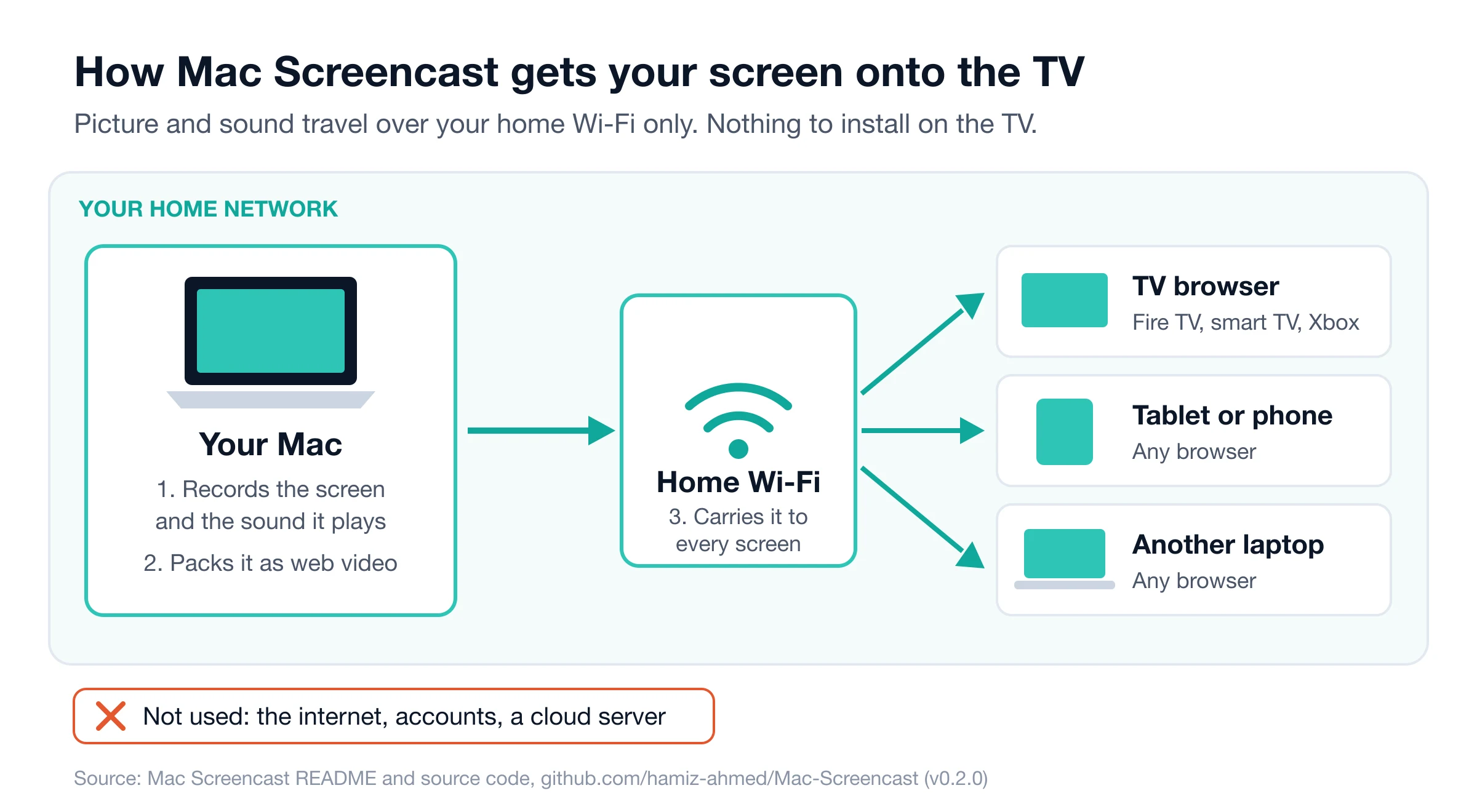
Think of a tiny TV station that only reaches your own home. The Mac is the station. Any device on the same Wi-Fi tunes in by opening a web address that the app shows you, something like http://192.168.178.80:8080.
Behind the scenes, three things happen. The app records your screen and your Mac's own sound, meaning whatever your Mac plays, not the microphone. It squeezes that into a common video format that web browsers can play without any plug-in. Then a tiny web server inside the app, a program that answers when a browser asks for a page, hands the stream to every device that's watching.
Nothing leaves your home network. The project's page on GitHub, the site where the code is published, sums it up as "No apps, no accounts, no cloud." There's no Dataotter server in the middle, and nobody has to sign up for anything.
A few small touches make it feel less like a tech demo. You can choose Light, Balanced or High quality. A checkbox mutes the Mac's speakers while you broadcast, so the sound comes out of the TV instead of twice. The status line tells you what's really happening, for example "Broadcasting with sound · 1 watching · 2.5 Mb/s".
For films, there's a Movie mode. Instead of filming your screen, the app hands an MP4 video file (the most common type) straight to the TV, at full quality and with a progress bar you can skip around in.
The honest catches
We'd rather you know these before you invite the family over.
- It runs a few seconds behind. The viewer keeps a small buffer, like YouTube does, so playback stays smooth. That's fine for films, photos and slides. It's wrong for games or anything where timing matters.
- Netflix and Prime Video show a black screen. Streaming services use copy protection that blocks screen recording. The project's README, its instruction page on GitHub, notes that this is a macOS restriction that hits every screen-capture tool, ours included. Use the TV's own app for those.
- Same Wi-Fi only, and no password. Anyone on your Wi-Fi who knows the address can watch. Use it on your home Wi-Fi, not on café, hotel or shared office Wi-Fi, and press Stop when you're done.
- Closing the lid stops it. A MacBook on battery goes to sleep when you close the lid, and no app can prevent that. Keep the lid open, or plug in power and an external display. While someone is watching, the app keeps the Mac awake on its own.
- The download is for Apple Silicon Macs, meaning Macs with Apple's own M-series chips. The current release, version 0.2.0, is built only for them, so older Intel Macs aren't covered by the ready-made download.
Why does macOS warn me before I open it?
The first time you open Mac Screencast, macOS stops you with a warning. That's because the app is unsigned: it hasn't gone through Apple's registration process for developers. Apple's help page on unknown developers explains what that means: macOS can't check whether the app has been changed since it was released.
The same page is blunt about the risk. It calls overriding this warning "the most common way that a Mac gets infected with malware". We think that warning is fair, and you should take it seriously for any app.
Here's our answer to it: the whole recipe is public. Every line of code that records your screen sits on the GitHub page for anyone to read, and the download comes from the same page. If you're unsure, ask someone technical to look at it before you open the app. If you're still unsure, don't install it.
Older guides say you can right-click the app and choose Open. Apple removed that shortcut in macOS Sequoia. Today you use the Open Anyway button in System Settings, as in step 4 below.
Why we made it free and open source
An app that can see everything on your screen should be one you can look inside. That's the main reason the code is public, under the MIT licence, which lets anyone use, change and share it.
There's no server of ours in the middle, so there are no running costs to pass on to you.
How to mirror Mac to TV without Apple TV, step by step
What you need:
- A Mac with Apple Silicon. To check, open the Apple menu › About This Mac. If you see "Chip" followed by an Apple chip name, you're set. If it says "Processor" with an Intel name, the download won't run.
- macOS 13 or later for sound. The app captures the Mac's sound with a method that, according to a note in its source code, needs macOS 13 or newer. On older versions you get the picture without sound.
- A TV, tablet or laptop with a web browser, on the same Wi-Fi as the Mac.
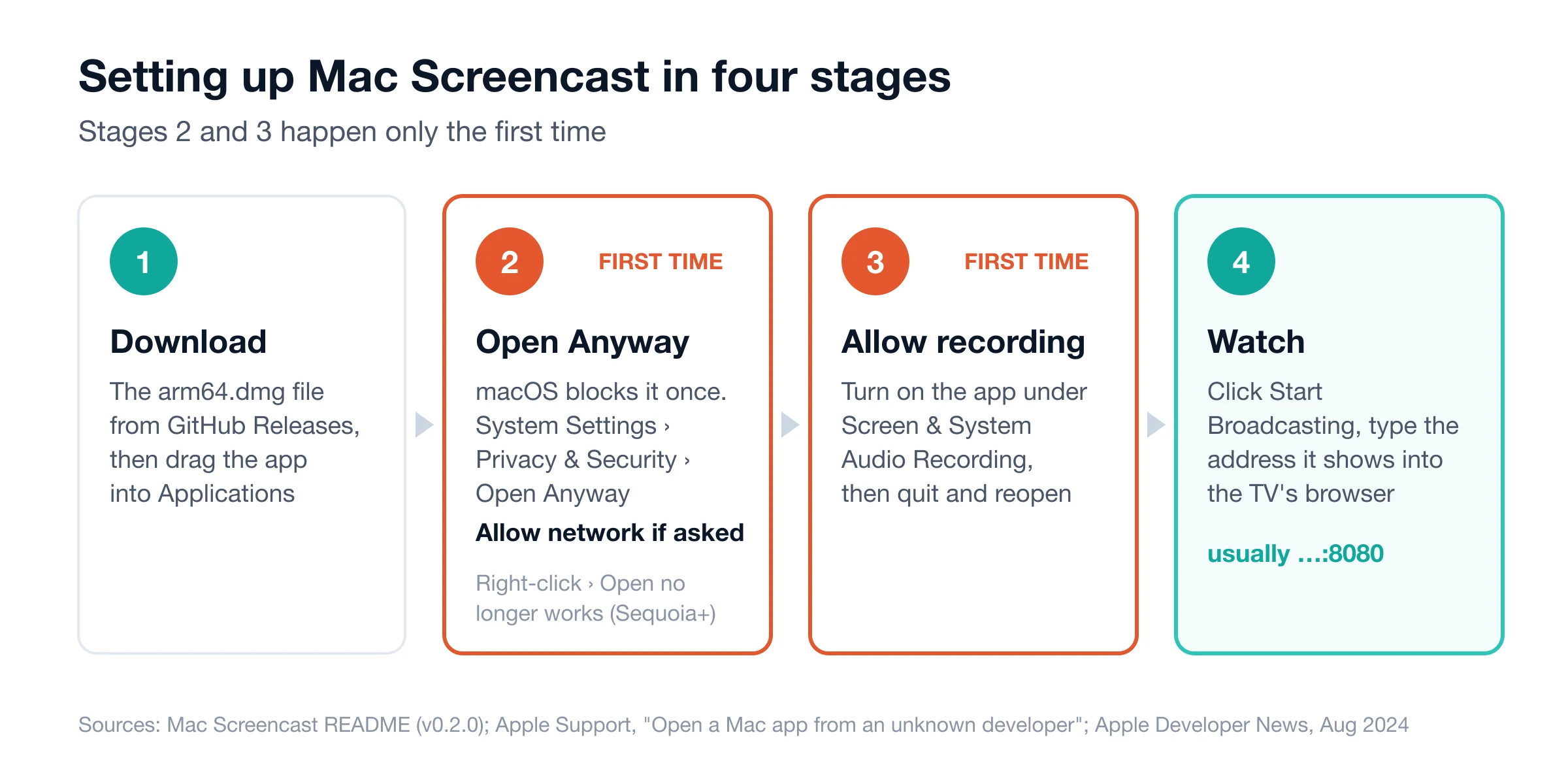
- Go to the Mac Screencast releases page. Under Assets, download the file ending in
arm64.dmg, the Mac installer. - Open the downloaded file and drag Mac Screencast into your Applications folder.
- Double-click Mac Screencast in Applications. macOS shows a warning and refuses to open it. Click Done. Don't click Move to Trash.
- Open System Settings, click Privacy & Security, and scroll down to Security. Click Open Anyway next to Mac Screencast. If the warning appears again, click Open, then enter your login password and click OK. Apple says the button stays there for about an hour after your first try. If macOS asks whether Mac Screencast may accept incoming network connections, click Allow. Your TV needs to reach the Mac.
- In the app, click Start Broadcasting. macOS asks for permission to record the screen. Turn on Mac Screencast under System Settings › Privacy & Security › Screen & System Audio Recording. If the app shows an Open System Settings button, click it to jump straight there.
- Quit Mac Screencast (press Command-Q) and open it again. This one restart lets the new permission take effect.
- Click Start Broadcasting. The app shows your watch address.
- On the TV, open the web browser and type that address exactly, including the number after the colon (usually 8080).
- If the picture plays but there's no sound, press OK on the remote or tap the screen once.
Which browser to use depends on the device:
- Fire TV: the Silk Browser, free in the Amazon Appstore.
- Android TV and Google TV: these usually come without one, so install a browser such as TV Bro from the Play Store first.
- Samsung and LG smart TVs: the built-in browser.
- Xbox: Edge.
- Phones, tablets and laptops: whatever browser they already have.
For a film, use the Movies section instead. Pick an MP4 file, then open the player address the app shows on the TV, the same address with /player added. If your film is in another format, such as MKV or AVI, the free converter HandBrake can turn it into an MP4 first.
If you try it, open an issue (a public feedback note) on GitHub and tell us which TV and browser you used. That's the most useful thing you can send. You'll find the download, the requirements and the list of devices that can watch on the Mac Screencast page.
Should you use it, or something else?
Here's how we'd decide.
- You already own an Apple TV. Use AirPlay. It's built into your Mac and needs no extra app.
- You're gaming or need zero delay. Use an HDMI cable.
- You want Netflix or Prime on the big screen. Use the streaming app on the TV itself.
- Everything else. A house full of mixed devices, slides on the TV at home or in a small private office, a film for the kids on a tablet: that's what Mac Screencast is for.
Most of us already own a screen in every room, and nearly all of them can open a web page. We think the browser is the most underrated screen-sharing tool in the house, and it shouldn't take a new box under the TV to use it.
Frequently asked questions
Can I mirror Mac to TV without Apple TV?
Yes. An HDMI cable works with almost any TV, and AirPlay also works with AirPlay-compatible smart TVs. If your TV has neither, a browser-based app such as Mac Screencast sends your screen and sound to the TV's web browser over your Wi-Fi, with nothing to install on the TV.
Does Mac Screencast send sound to the TV?
Yes. It sends whatever your Mac plays, not the microphone. By default it mutes the Mac's own speakers so you don't hear everything twice. If the TV starts playing without sound, press OK on the remote or tap the screen once.
Is Mac Screencast safe to install?
The app is unsigned, so macOS can't check whether the app has been changed since it was released, and shows a warning. Apple advises caution with any such app. The full code is public on GitHub, so you or someone you trust can check what it does before you click Open Anyway.
Why is Netflix black when I share my Mac screen?
Streaming services such as Netflix and Prime Video use copy protection that blocks screen recording on macOS. Every screen-capture tool shows a black picture for them. Use the streaming app on the TV itself instead.
Does Mac Screencast work on a Fire TV stick?
Yes. Open the free Silk Browser from the Amazon Appstore, type the address the Mac app shows, including the number after the colon (usually 8080), and the stream starts. You can control it with the TV remote.
Sources
- Mac-Screencast: cast your Mac screen with system audio to any browser on your Wi-Fi, GitHub (Dataotter)
- Mac-Screencast releases, GitHub (Dataotter)
- Mac-Screencast source code: src/main/main.js, GitHub (Dataotter)
- Stream video and audio with AirPlay, Apple Support
- Use AirPlay to stream video or mirror the screen of your iPhone or iPad, Apple Support
- Open a Mac app from an unknown developer, Apple Support
- Updates to runtime protection in macOS Sequoia, Apple Developer
- Control access to screen and system audio recording on Mac, Apple Support
- Media Source API, MDN Web Docs
- Safely open apps on your Mac, Apple Support
- Mac computers with Apple silicon, Apple Support
- Streamen von Audio und Video über AirPlay, Apple Support
- Mit AirPlay Videos streamen oder den Bildschirm deines iPhone oder iPad synchronisieren, Apple Support
- Öffnen einer Mac-App eines unbekannten Entwicklungsteams, Apple Support
- Sicher Apps auf dem Mac öffnen, Apple Support
- Mac-Computer mit Apple-Chip, Apple Support
- Steuern des Zugriffs auf die Bildschirm- und Audioaufnahmefunktion auf dem Mac, Apple Support